Fix common phone-photo problems
| What you see | What to try |
|---|---|
| A shadow on the wall | Move farther from the background and adjust your position relative to the light. |
| One side of the face is dark | Place the light more directly in front of you, near the camera. |
| Blur or missing detail | Clean the lens, steady the phone, and retake in better light. Keep the original file. |
| Face looks distorted | Avoid an arm’s-length selfie. Move the camera farther away and use a helper or timer. |
| Head is cut off | Leave more space above and beside the head so the crop has room. |
Camera menus vary by phone. Use the normal photo mode and check the saved image; these are setup principles, not a claim that every iPhone or Android camera has been tested.
Next, review passport photo head size and framing, then learn how to print the 4×6 sheet.
Set up your phone, background, and light.
Find a quiet background
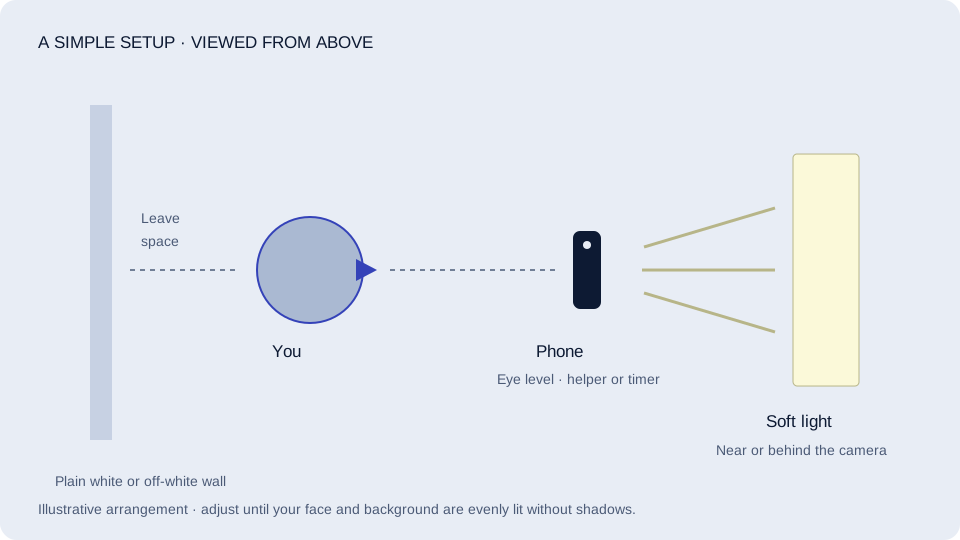
Use a plain white or off-white wall. Move away from it until the shadow behind you softens.
Face gentle daylight
Try a window behind the camera. Check both sides of your face for shadows; avoid a bright window behind your head.
Give the camera some distance
Ask someone to help, or use a stable support and timer. Place the camera at eye level and leave space above your head and around your shoulders.
Take a few. Keep them real.
Look straight at the lens with your head level, eyes open, and a neutral expression. Remove glasses. Use the normal camera mode with beauty filters and background effects switched off.
Keep the original file. Avoid screenshots and photos sent through messaging apps that compress them. Transfer the original image when checking on another device.
Check your phone photo with FormFitPhoto when you have an original image ready.
Take several photos, then pick the sharpest one with even lighting. A checker can flag possible problems; it cannot certify that the issuing office will accept your photo.
A short review before printing.
Look at the photo
Can you see the whole head? Is the face sharp? Are the skin tones natural? Is anything casting a shadow?
Check the framing
Run the photo through FormFitPhoto and review the measured crop. Retake it if there is not enough room around your head.
Should I use portrait mode?
Use the standard photo mode so the camera does not artificially blur or replace the background.
Should I crop an online renewal photo?
Follow the official online renewal instructions and keep the original file. The portal has its own photo-positioning process.
Choose the original before you crop
For a paper application
Start with the sharpest original, review its framing, then create a print sheet. The final physical photo needs its own size and quality check.
For online renewal
Keep the original camera file. Use the State Department’s upload process and its own positioning instructions; do not substitute our print sheet or cropped download.
Before you choose a photo
Zoom in on the saved image to check sharpness. Compare several shots for even lighting and a straight-on pose. If a filter, artificial background effect, or missing detail is the problem, retake the photo rather than trying to repair it.
By FormFitPhoto · Reviewed October 7, 2026. Requirements reference: US Department of State. For online renewal, follow the digital-photo instructions. This independent guide is not government approval. How we write and check these guides.